Building a Basic LLM Completion Request in C# with OpenAI
Right, in this section, we are going to actually be writing some code. We are going to be making a basic LLM completion request from C#. It will just be a bare-bones C# console application that uses the OpenAI NuGet package.
This application is going to make a call to the OpenAI API to complete some text, just like we explored in previous sections. Later on, you will be using LLMs not just from OpenAI but also from Google Gemini and Anthropic. The code in this post is a throwaway example to get us started. You will be implementing this in a much more generic way later on, but for now, let's just get started with a basic example using OpenAI.
Getting Your Credentials
Now, the first thing before we start calling OpenAI is that we are going to need to get an API key. To do that, head over to openai.com and sign up for an account.
As you can see in the dashboard below, there is a section down the left-hand side for API keys. Click on that and click Create new secret key.
You will be able to give it a name, assign it to a project, and restrict its permissions. That will give you an API key that we can use to call OpenAI.
Setting Up the Project
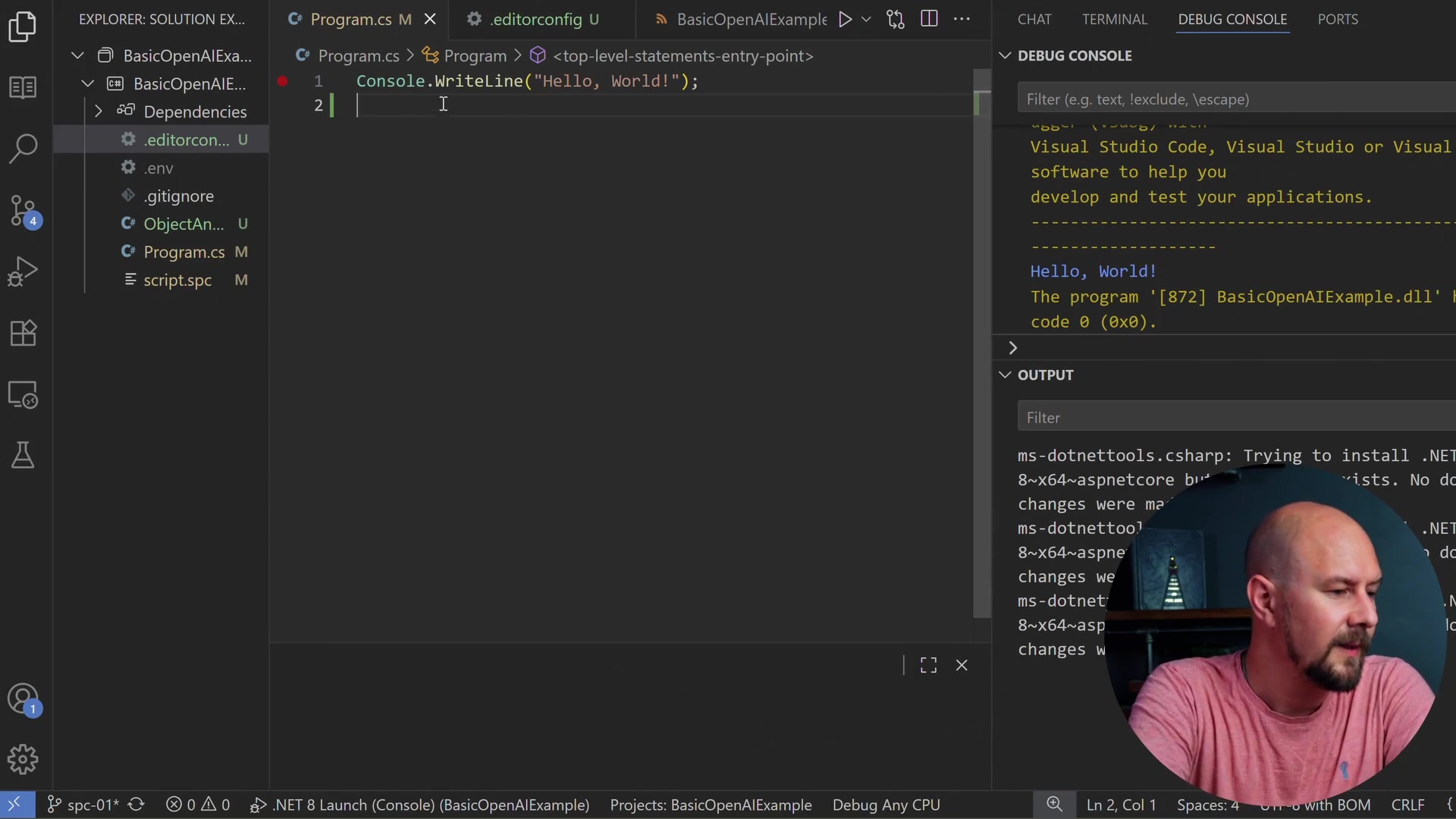
Let's create a new console application. I have just created a basic .NET 10 console application in C#. At the minute, it just says "Hello, World!"

We need to get our OpenAI key into there. You can find the demo for this on GitHub, but one thing you won't find on GitHub is my OpenAI key because I put that in a file called .env. We are going to be using a NuGet package to read environment variables from this file.
Create a file called .env in your project root. In here, you want to create a line called OPENAI_API_KEY like this, then equals, and then paste your API key in there.
OPENAI_API_KEY=sk-proj-your-key-here...
I have also added a .gitignore so you don't check it into GitHub.
Installing NuGet Packages
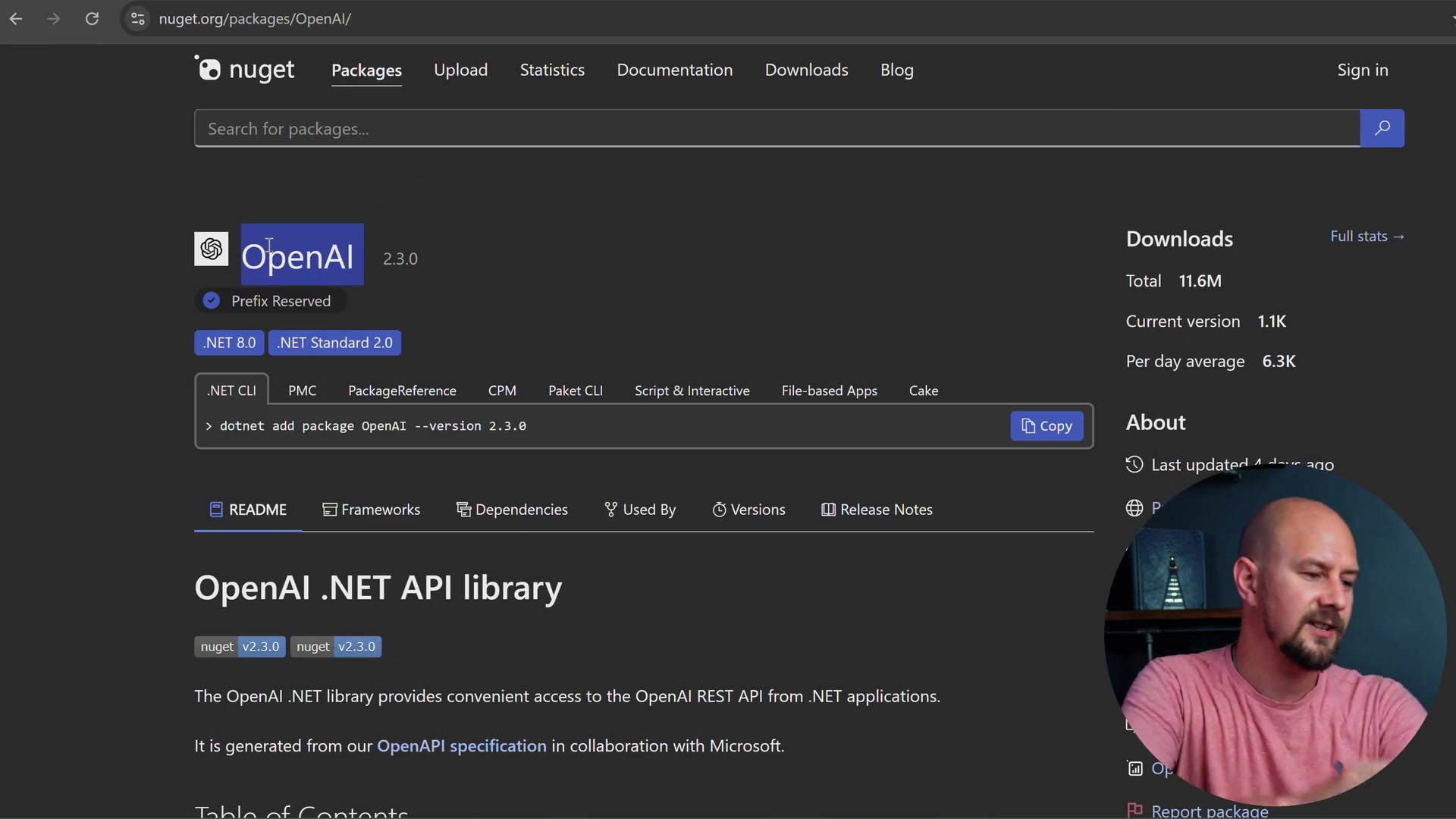
Next, we are going to add a couple of NuGet packages. The packages for this are going to be dotenv.net, which is going to allow us to read our .env file, and the official OpenAI package.
You can install these two packages using the .NET CLI:
dotnet add package dotenv.net
dotnet add package OpenAI
Once you have those installed, we can start implementing the code.
Writing the Application
Of course, there is a bunch of documentation on the NuGet site that shows you how to do this, but we are just going to do a very basic example. Delete everything out of your Program.cs file and let's start fresh.
We will be using dotenv.net to pull our environment variables in, and we need OpenAI.Chat and OpenAI.Responses.
using dotenv.net;
using OpenAI.Chat;
using OpenAI.Responses;
Loading Environment Variables
To load our environment variable, we are going to use the DotEnv class. This will load that OpenAI key into an environment variable so we can retrieve it using the Environment class.
We will also throw a quick error in case we haven't got the environment variable set. If it is null, we will throw an InvalidOperationException.
DotEnv.Load();
var openAiKey = Environment.GetEnvironmentVariable("OPENAI_API_KEY");
if (openAiKey == null)
    throw new InvalidOperationException("Missing OPENAI_API_KEY");

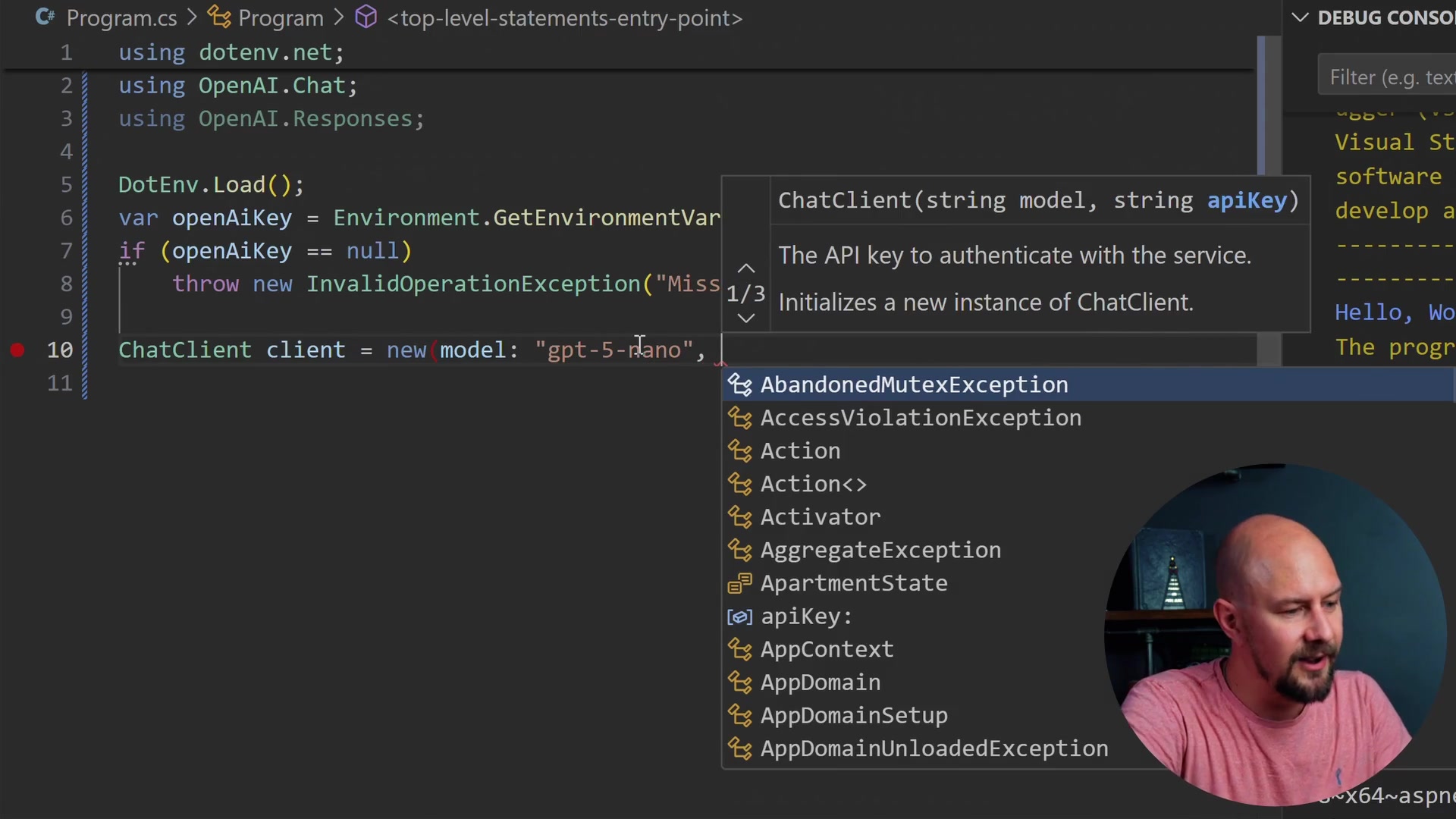
ChatClient client = new(model: "gpt-5-nano", openAiKey);
Here, we create a new instance of ChatClient. I am going to use "gpt-5-nano" because it is a small model, and that is basically all we need for here. We are just going to do some basic tests.
Handling Chat History
If you remember, LLMs are stateless. LLMs won't remember your chat history for you. You will need to send off the entire chat history, meaning all of the chat messages, in every request that you make to an LLM like GPT.
So, I am going to create a List of chat messages. This ChatMessage class comes from OpenAI.Chat. As we talk to the LLM, we are going to be adding more messages into that list.
We will create a new list and add a new AssistantChatMessage, which is the first one from the AI. That is just going to say, "Hello, what do you want to do today?"
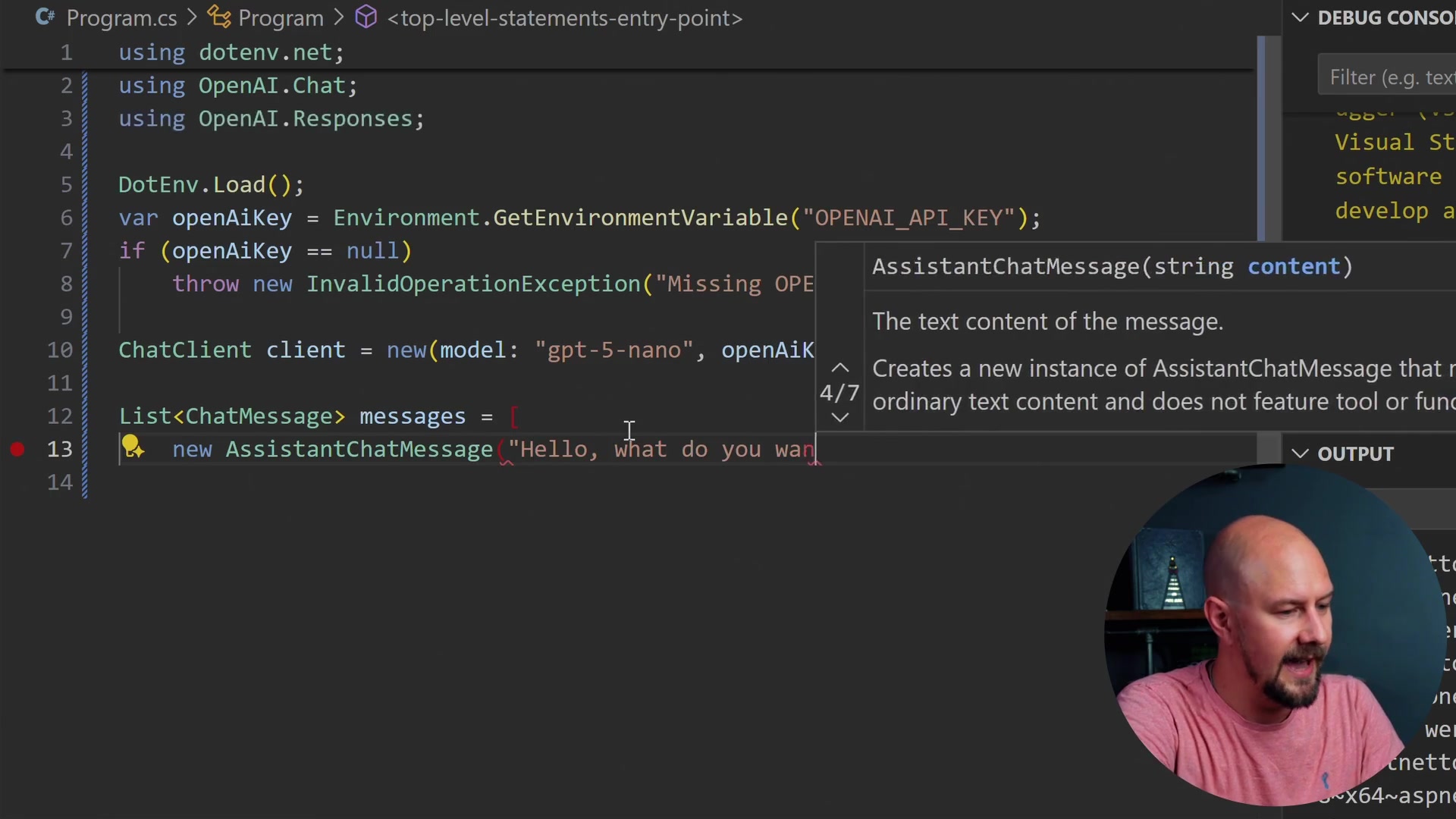
List<ChatMessage> messages = [
    new AssistantChatMessage("Hello, what do you want to do today?")
];

Console.WriteLine(messages[0].Content[0].Text);
We print this first message to the Console so the user sees the greeting.
Creating the Chat Loop
Now we are going to start what is called an agent loop or a chat loop. We do this by using while (true). Very few times in your code will you actually use while (true), but this is one of the times you will do it. We want an infinite loop running inside our console application that is always either waiting for an input from the user or waiting for a response back from the AI.
Inside that loop, we are going to pull in the next line of chat from the user. I just set the foreground color in the console to something like blue to make it distinct.
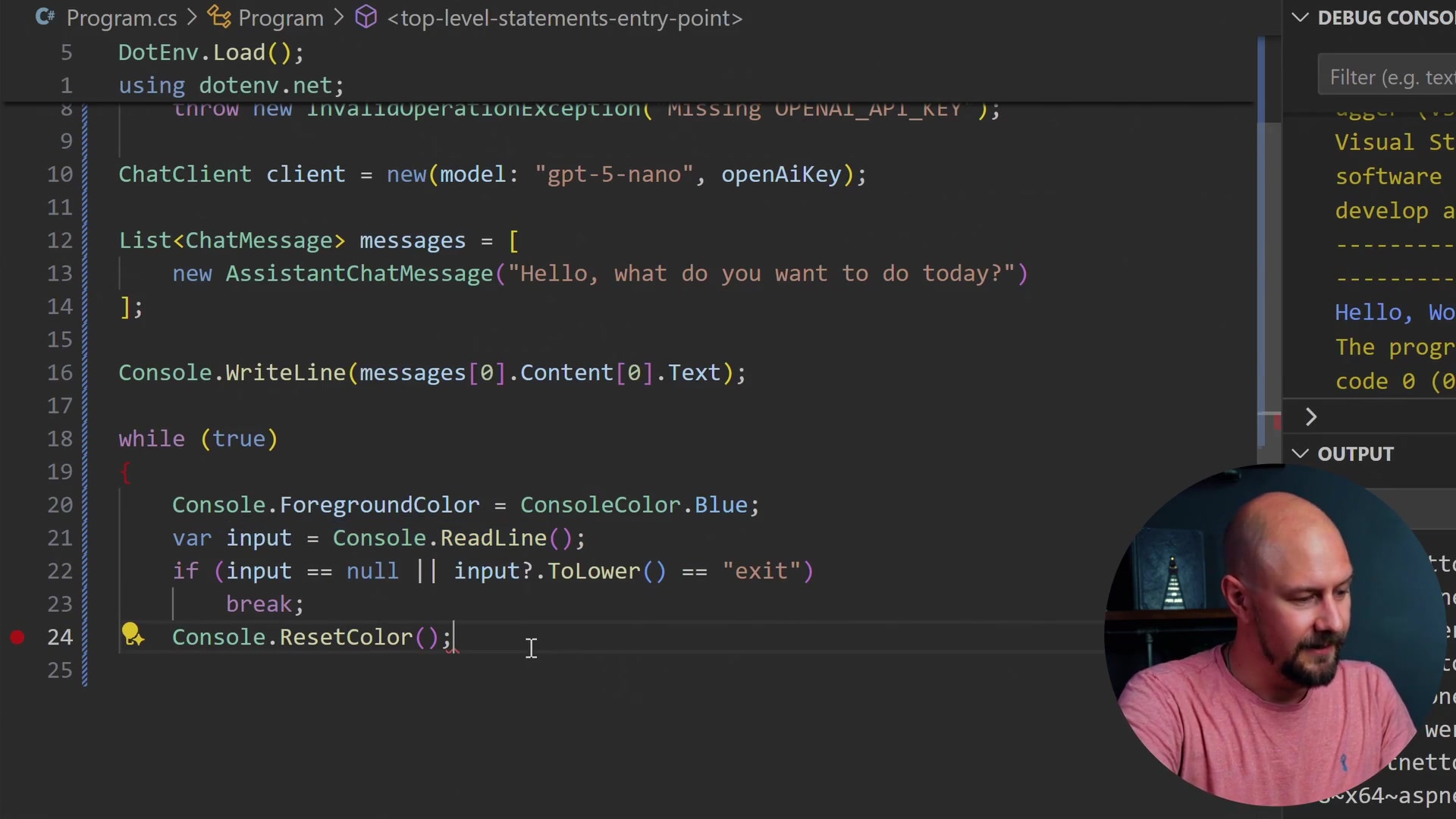
while (true)
{
    Console.ForegroundColor = ConsoleColor.Blue;
    var input = Console.ReadLine();
    if (input == null || input?.ToLower() == "exit")
        break;
    Console.ResetColor();

    messages.Add(new UserChatMessage(input));
We read the line, check if the user wants to exit, and then reset the color. Crucially, we then add that user input as a UserChatMessage into our message history.
At this point, the messages list has the original assistant message and the new user message. That is enough to be able to send off to the AI.
Generating the Completion
Let's create a completion response using client.CompleteChat. This will actually make an API call to OpenAI. We need to send it the messages list.
What we are doing is passing this entire messages list, sending it off to OpenAI, and getting the completion response back. Inside that completion, we will have content which is going to be an array. We access the text of the first item.

    ChatCompletion completion = client.CompleteChat(messages);

    var response = completion.Content[0].Text;

    messages.Add(new AssistantChatMessage(response));
    Console.WriteLine(response);
}
That will be the response message back from ChatGPT. We then add that into our messages list so we have it for next time, and finally, we write it to the console.
There we go. That is basically our agent.
Testing the Application
If I run this now, I am going to put a breakpoint in just so we can see what is happening. I will run this application, and we should be able to write stuff into the console and then send it off to OpenAI.
You can see it has written "Hello, what do you want to do today?" into the console. I have the option to write something, so I am going to say "tell me a joke" and hit enter.
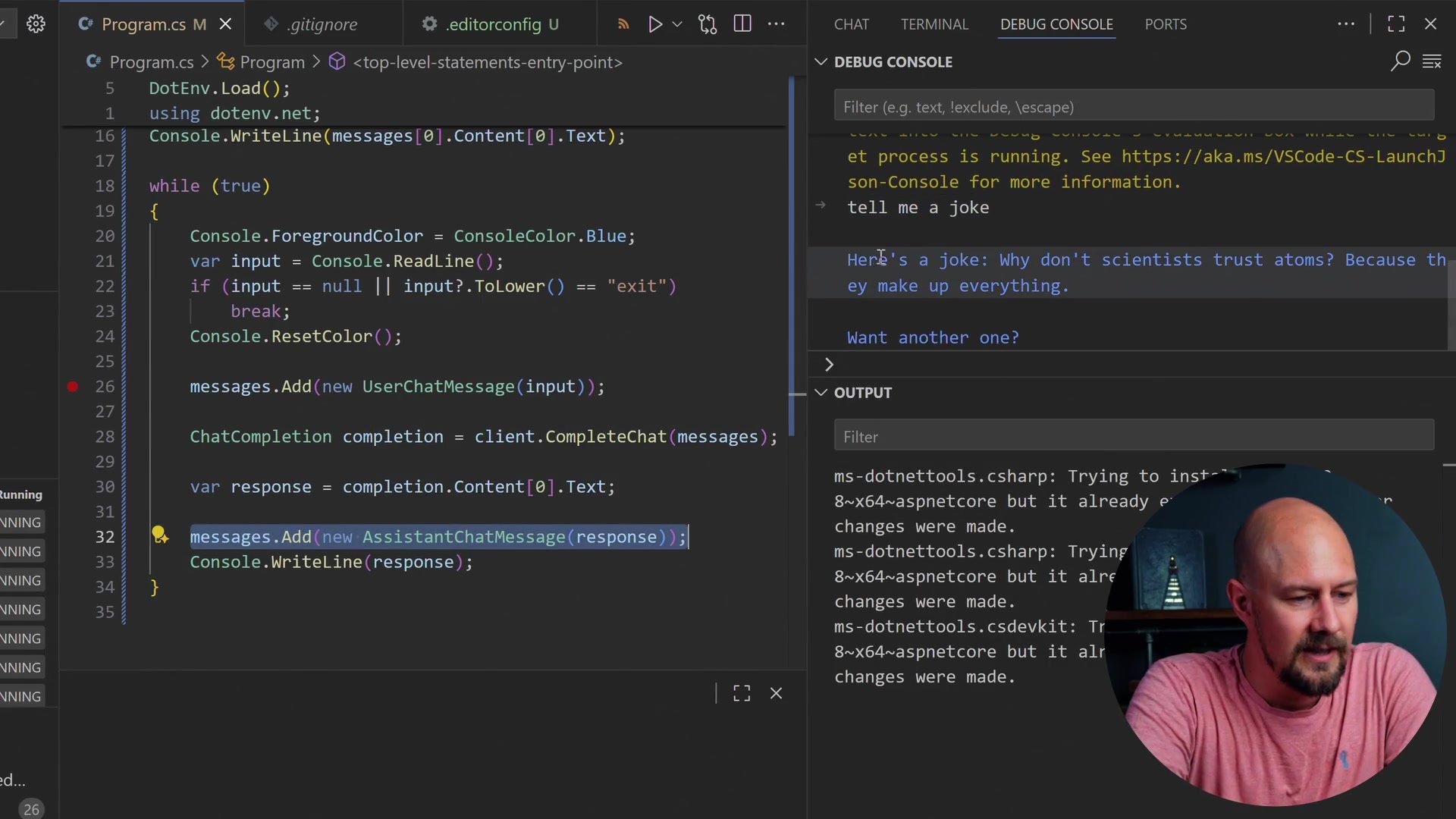
This drops into our code. You can see that the input is "tell me a joke," and we have added that into the messages array. So our messages list now contains the original assistant chat message and the next message will be our chat message that we have just typed.
We send these two messages off to OpenAI. This happens synchronously, though they can do it asynchronously as well.
Understanding the Response
When we get the response back, it tells us interesting stuff like how many tokens it used. We haven't really talked about tokens a huge amount, but in a nutshell, you can think of a token a little bit like a part of a word, kind of like a syllable. So the word "syllable" would probably be three tokens. Tokens are what OpenAI and different model providers use to count usage and charge you access to the model.
Here is the joke we got back: "Why don't scientists trust atoms? Because they make up everything."
Honestly, I spent a lot of time asking LLMs to tell me jokes, and they always tell you this exact same joke. I am not quite sure why that is.
Proving the Context Memory
We can continue our conversation here. I am going to say, "Yes, tell me another one."
This time, we should have four messages in our array. Remember, this messages array is being built up each time we have our conversation.
- Original Assistant Message ("Hello...")
- User Message ("Tell me a joke")
- Assistant Message (The Atom joke)
- User Message ("Tell me another one")
We get another completion back from the AI. Now I have five items in my messages array.
We can prove that we are actually passing the entire array if I ask it: "What was the first joke you told me about?"
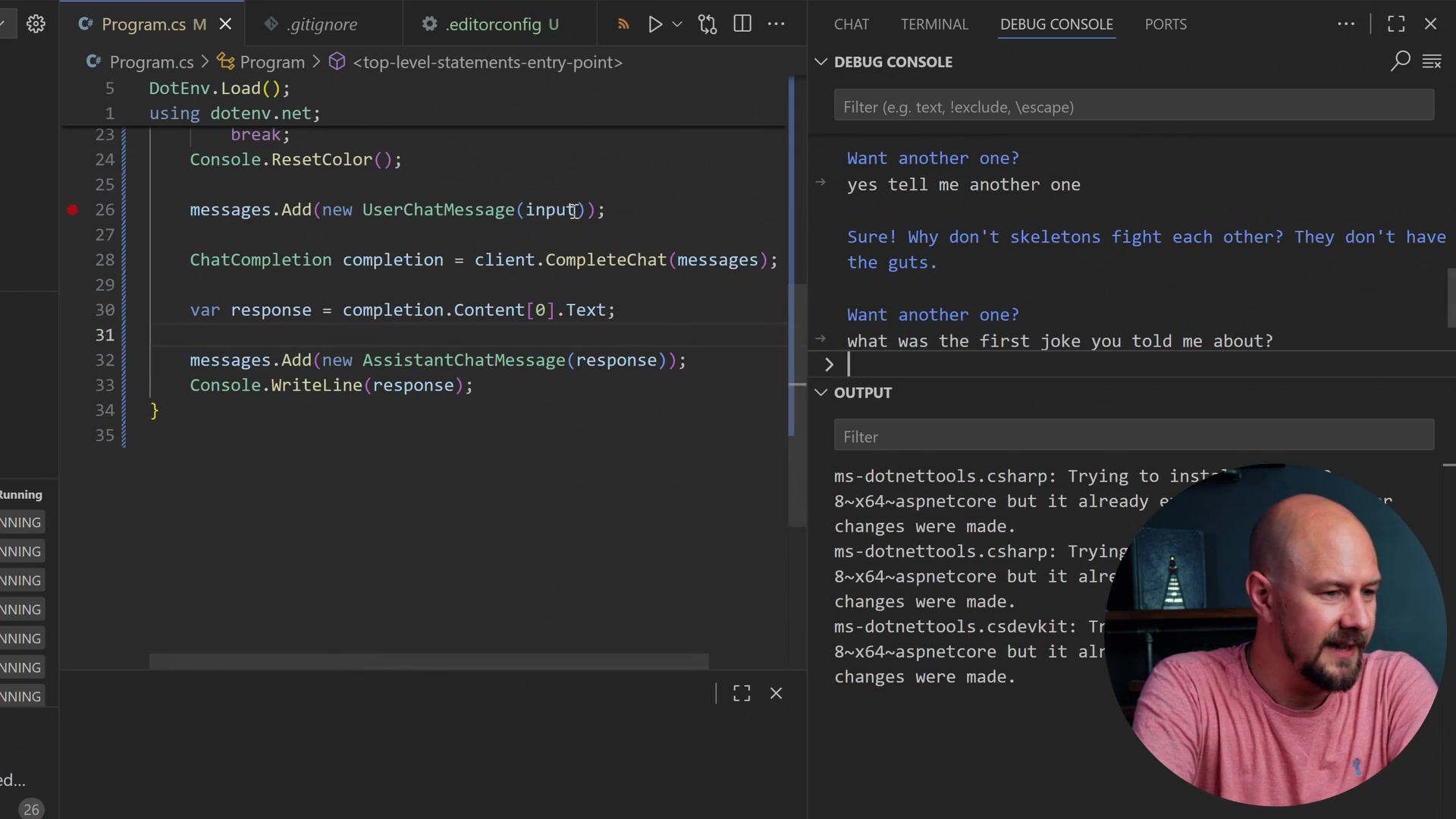
It comes back and says, "The first joke was: 'Why don't scientists trust atoms? Because they make up everything.'"
It knows that because I passed in the entire messages array. Remember, the LLM hasn't learned anything and hasn't remembered anything on its own. The LLM is completely stateless, but it knows this entire conversation history because we are passing in this entire conversation history.
Recap
Have a play around with this. This is a really good entry point to just learning about how you can build up conversation histories and interact with an LLM.
- Credentials: You need an OpenAI API key, ideally stored securely in an
.envfile. - Dependencies: We used
dotenv.netfor configuration and the officialOpenAINuGet package for the API client. - Statelessness: LLMs do not remember previous requests. You must maintain a
List<ChatMessage>and send the full history with every new request. - The Loop: A simple
while(true)loop allows for continuous interaction, mimicking a chat interface.
Give it a go, and then we will move to the next section where we start to do this a little bit more properly. Thanks for reading.