
Setting Up Pinecone as Your Vector Database for .NET AI Applications
In the previous section, we wrote some code that creates embedding vectors from pieces of text. As a refresher, we had a words array, and we iterated through each item to make a call to the OpenAI text embedding small model. This process returned a vector, building up an array of vectors for all our words.

var words = new[] { "cat", "mouse", "lion", "tiger", "helicopter", "train", "blue", "carrot", "space" };

for (var i = 0; i < words.Length; i++)
{
    var embedding = await embedder.GenerateAsync(words[i],
        new Microsoft.Extensions.AI.EmbeddingGenerationOptions { Dimensions = 512 });

    var vector = embedding[0].Vector.ToArray();
    vectors.Add((words[i], vector));
}
Now that we have this data, we need a database to store it in. This storage will allow us to search through the data using vector search techniques.
Why Use a Dedicated Vector Database?
You could theoretically store all these vectors in flat files or SQL tables and perform the cosine similarity calculations yourself. However, you don't really need to do that these days. There are excellent databases available that are designed from the ground up specifically for storing and querying vectors.
For this post, we are going to use Pinecone. It is one of the most popular vector storage databases available. Pinecone is a managed, cloud-based vector database service designed specifically for AI applications. It has features like cosine similarity built right in, and importantly for us, it offers a very nice .NET SDK that allows us to communicate with Pinecone through our application.
The Pinecone Free Tier
Unlike some alternatives like Azure AI Search, Pinecone actually has a pretty generous free tier on their hosted service. This is what we will be using because you shouldn't have to spend loads of money hosting databases yourself just to learn these concepts.
We are only going to be building a small chatbot with a few hundred pieces of text to search through. The free tier on Pinecone is more than enough for what you need.
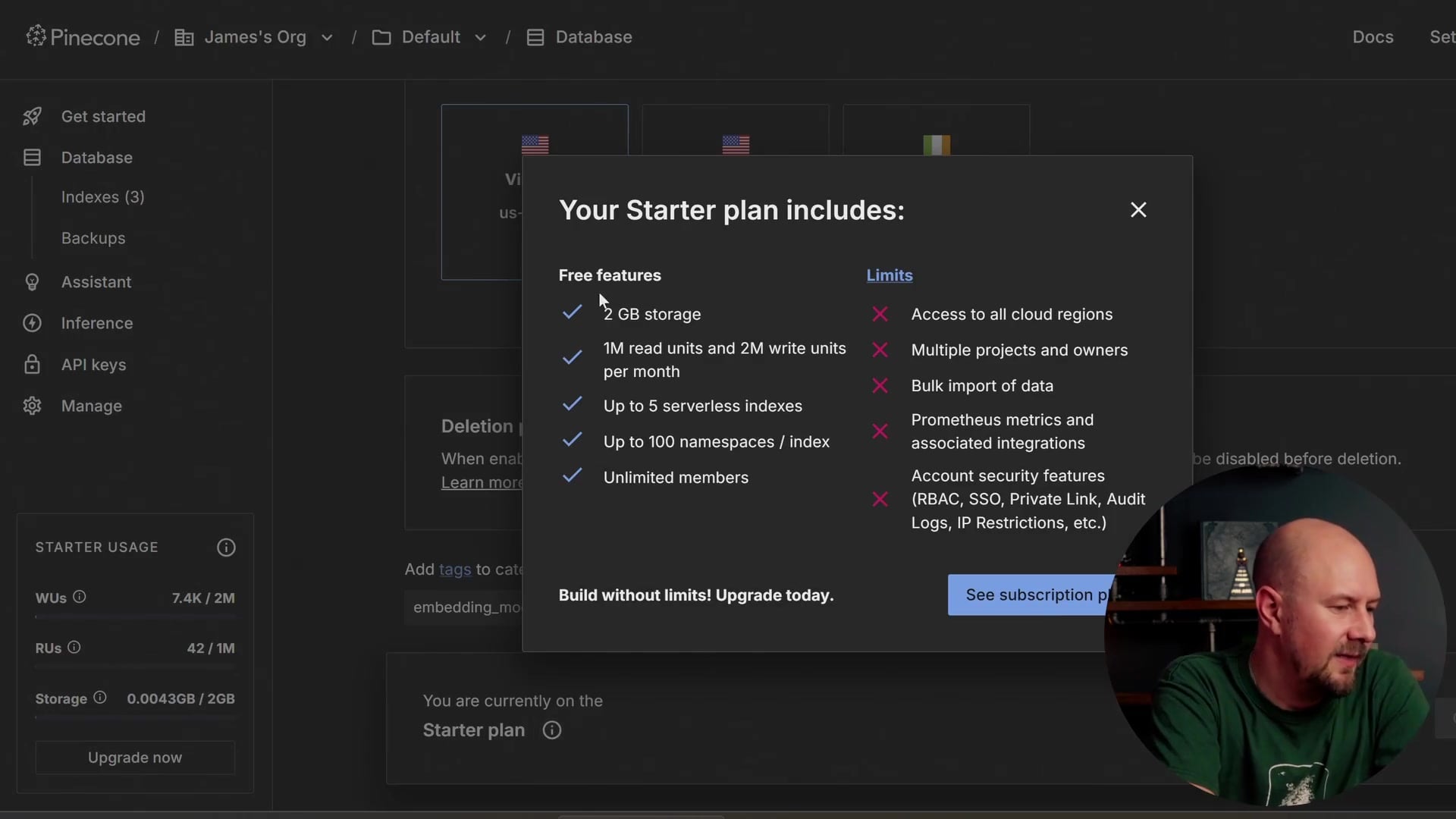
As shown above, the "Starter" plan allows for up to five serverless indexes and two gigabytes of storage. This is perfectly acceptable for our project limits.
Creating Your First Index
To get started, you will need to go to pinecone.io and sign up for an account. Once you are logged in, you will want to get comfortable with the "Create Index" menu.
When you create an index, you need to tell it which model you are using for embeddings. This is a good way to see what models are out there, such as those from Nvidia or Microsoft. Since we are using the OpenAI text-embedding-3-small model, we need to configure our index to match those specifications.
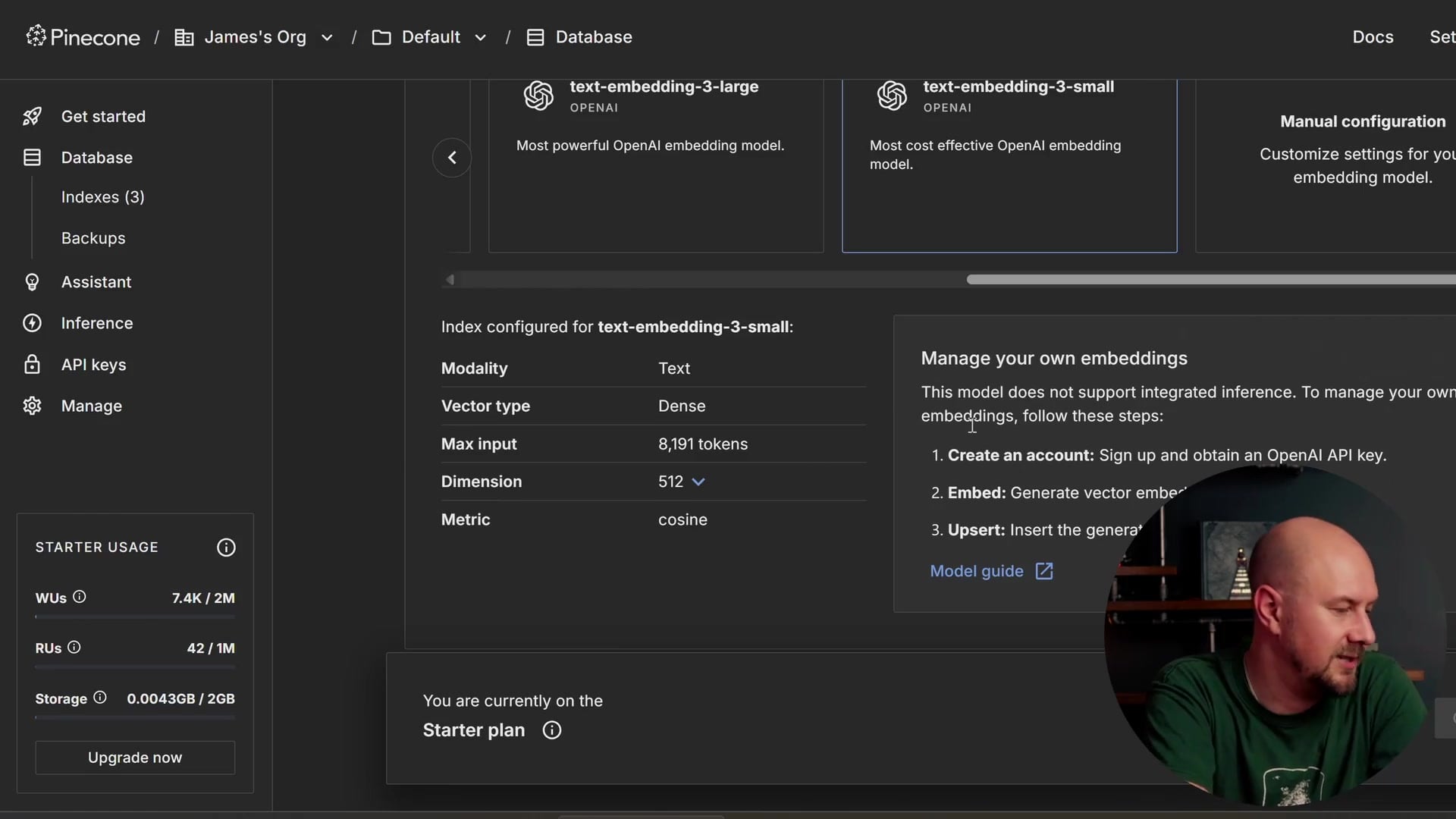
Here is the configuration we will use:
- Model: text-embedding-3-small
- Dimensions: 512 (This must match the dimensions we specified in our C# code)
- Vector Type: Dense
- Metric: Cosine similarity
Once you create the index, you might see usage statistics. Don't get too alarmed by the usage meters if you see them later; since we are sticking within the starter plan, you shouldn't have to pay anything for using Pinecone in this context.
I encourage you to go set that up now. In the next post, we will take your ready Pinecone index and your OpenAI key, and we will start actually indexing some real data.
Recap
- Managed Service: Pinecone is a cloud-based vector database optimized for AI, replacing the need for manual vector calculations in flat files.
- Generous Free Tier: The starter plan offers 2GB of storage and 5 indexes, which is sufficient for learning and building small applications.
- Configuration Matters: When creating an index, ensure your dimensions (e.g., 512) match exactly what you defined in your embedding generation code.
- SDK Support: Pinecone provides a robust .NET SDK, making integration into C# applications straightforward.