


Getting Started: AI for .NET Developers
Get started with integrating AI into your .NET applications effectively using the latest LLM best practices.

AI-powered coding tools are becoming increasingly popular in software development. Anthropic’s Claude Code is one such tool that lets you run autonomous AI agents directly from your terminal. These agents use Claude’s proprietary models to modify files in your workspace, interact with external MCP tools, and even create subagents to handle tasks in parallel. However, without proper context, you may find yourself repeatedly correcting the agent or rewriting the code it generates.
The CLAUDE.md file solves this problem by providing persistent, project-specific memory for your agents. In this guide, you’ll learn how the CLAUDE.md file works, why it matters, and how to structure an effective configuration for your own projects. With the proper setup, your Claude Code agents will generate code more efficiently, while consistently following your project’s standards.
The CLAUDE.md file acts as persistent memory for Claude Code agents. The markdown file is typically stored in your project’s root directory, although there are other locations you can store it as well. It contains key project information like terminal commands, development workflows, domain-specific terminology, and the coding and architectural standards your team follows. Providing this context up front helps agents avoid running incorrect commands or introducing architectural or stylistic inconsistencies when implementing new features.
When you start Claude Code, it reads the CLAUDE.md file to understand your codebase. Every agent you start loads the CLAUDE.md file into its context, so you don’t have to re-explain your project each time.
To get started, you can either manually create a CLAUDE.md file in your project’s root directory or let Claude Code generate an initial version for you. When you use Claude Code to create the file, it scans your project directories to gather as much context as possible. It then documents its findings in the CLAUDE.md file. Treat this generated file as a starting point. You must still review and update it to reflect your team’s specific standards and add any additional context that isn’t obvious from the codebase alone.
To generate the CLAUDE.md file, start Claude Code in your project’s root directory:
claude
Once running, execute the /init command:
/init
This command launches an analysis agent that generates the CLAUDE.md file. When the analysis agent finishes, you’ll find the file in your project’s root directory:
run-wrapped
├── api
├── web
├── .editorconfig
├── .env.example
├── .gitignore
├── CLAUDE.md            # File generated by Claude Code
├── README.md
└── docker-compose.yml
Below is a preview of the file generated for a fitness application that uses React.js for the frontend and .NET for the backend:
# CLAUDE.md

This file guides Claude Code (claude.ai/code) when working with code in this repository.

## Project Overview

RunCover is a full-stack web application that generates Wrapped-style short videos of your GPX activities (runs, rides, etc.). Users upload GPX files, and the system creates personalized visual summaries of their activities.

## Tech Stack

- **Backend**: .NET 10.0, ASP.NET Core Web API, Entity Framework Core 10.0, PostgreSQL 17
- **Frontend**: React 19, TypeScript 5.9, TanStack Router & Query, Tailwind CSS 4.1, Vite 7.2

## Common Commands

[Claude Code finds and lists common commands here]

## Architecture

[Claude maps out file structure and tries identifying architectural patterns]

## Code Style

[Claude looks for coding conventions in files]
The initial file includes more obvious details, such as terminal commands to test and run the app. The high-level architecture is also documented, along with some of the technologies used. Finally, the file includes some coding conventions identified in the project.
From here, you can refine the file to better align with your project’s requirements. As you notice gaps or areas where the agent struggles, update the CLAUDE.md file to address them.
The quality and content of your CLAUDE.md file directly affect how quickly and accurately Claude Code agents can complete tasks. Knowing what information to include and how to present it is essential.
The sections below outline the key components to consider when crafting the perfect CLAUDE.md file.
A large part of development involves running terminal commands, such as building the application, running automated tests, or linting code. By documenting which commands are available in your project, you help Claude Code avoid guessing or using incorrect commands, which helps it generate more accurate code in less time.
When you run the /init command, Claude Code might try figure out standard terminal commands needed for your application. However, it’s possible that Claude missed some commands, which you should add manually. You should also specify any parameters or flags your team uses when running commands that might have been missed in the initial analysis.
For example, you might pass specific arguments to the .NET CLI to generate EF Core migrations, such as the migration project, startup project, and database connection string. If you don’t document these arguments, the agent will run the default EF Core migration command, which will fail when it can’t find the appropriate project files. Or you may notice the agent incorrectly passes arguments when running an individual JavaScript unit test. You can include an instruction in the CLAUDE.md file to run single tests. By documenting common commands and their arguments, you prevent the AI from hallucinating flags or executing nonexistent commands.
For example, in the CLAUDE.md file generated above, the updated Common Commands section might contain the following:
## Common Commands

### Backend

The backend uses .NET 10. Run all commands in the `api/` directory:

```bash
dotnet build src/RunCover.API --configuration Release # Build the production API
dotnet test tests/RunCover.Domain.Tests               # Run domain tests
dotnet test tests/RunCover.Application.Tests          # Run application tests
dotnet test tests/RunCover.Infrastructure.Tests       # Run integration tests
dotnet run --project src/RunCover.API                 # Run API server
dotnet build <csproj_file>                            # Build a project (inside project folder)
dotnet format --verify-no-changes <csproj_file>       # Check for invalid formatted code (inside project folder)
dotnet format <csproj_file>                           # Format code files (inside project folder)

dotnet ef migrations add <name> --project src/RunCover.Infrastructure --startup-project src/RunCover.API
dotnet ef database update --project src/RunCover.Infrastructure --startup-project src/RunCover.API
```

### Frontend

The frontend uses Node.js 24. Run all commands inside `web/` directory:

```bash
npm install                # Install dependencies
npm run dev                # Dev server (localhost:5173)
npm run build              # Production build
npm run lint               # ESLint check
npm run lint -- --fix      # Fix ESLint issues
npm run test               # Run all tests
npm run test -- <filename> # Run tests in a specific file
```

### Docker

Run all commands in root directory:

```bash
docker-compose up -d         # Start full stack (PostgreSQL, API, Frontend)
docker-compose up --build -d # Rebuild all containers and start full stack (PostgreSQL, API, Frontend).
                             # First try the first command before rebuilding.
```
The command list includes commands to run various test projects and format code. Some commands also explicitly specify which directories they should be run in, reducing the chances of an agent encountering issues by running commands in the wrong directory.
As you continue to delegate tasks to the agent, add any other terminal commands that you notice the agent gets confused by. This ongoing refinement will help the agent become more reliable over time.
When implementing new features, a team typically follows predefined workflows to plan, implement, and test them. To help Claude Code write code that’s consistent with the code the team writes, you should explicitly document these workflows in the CLAUDE.md file.
Workflows are also helpful when agents repeatedly miss specific details. In these cases, you can craft a workflow that reminds the agent to pay attention to those details when completing tasks.
For the fitness app, adding the following workflow improved the quality of the final code output by the agent:
## Workflows

### Creating/Modifying API Endpoints

When creating new API endpoints:

1. First plan the new endpoint changes, including new/updated methods, paths and request payloads
2. Confirm proposed changes with user
3. Implement the endpoint
4. Add/update endpoint in the .http file, including documenting endpoint and payloads
5. Test the .http file using: `docker run --rm -i -t -v $PWD:/workdir jetbrains/intellij-http-client <http_file_name>`
Now, instead of immediately making code changes, the agent will plan the changes and prompt for confirmation before proceeding.
To demonstrate, below is an example of the agent following the new workflow and showing potential implementations for a feature before making any changes:
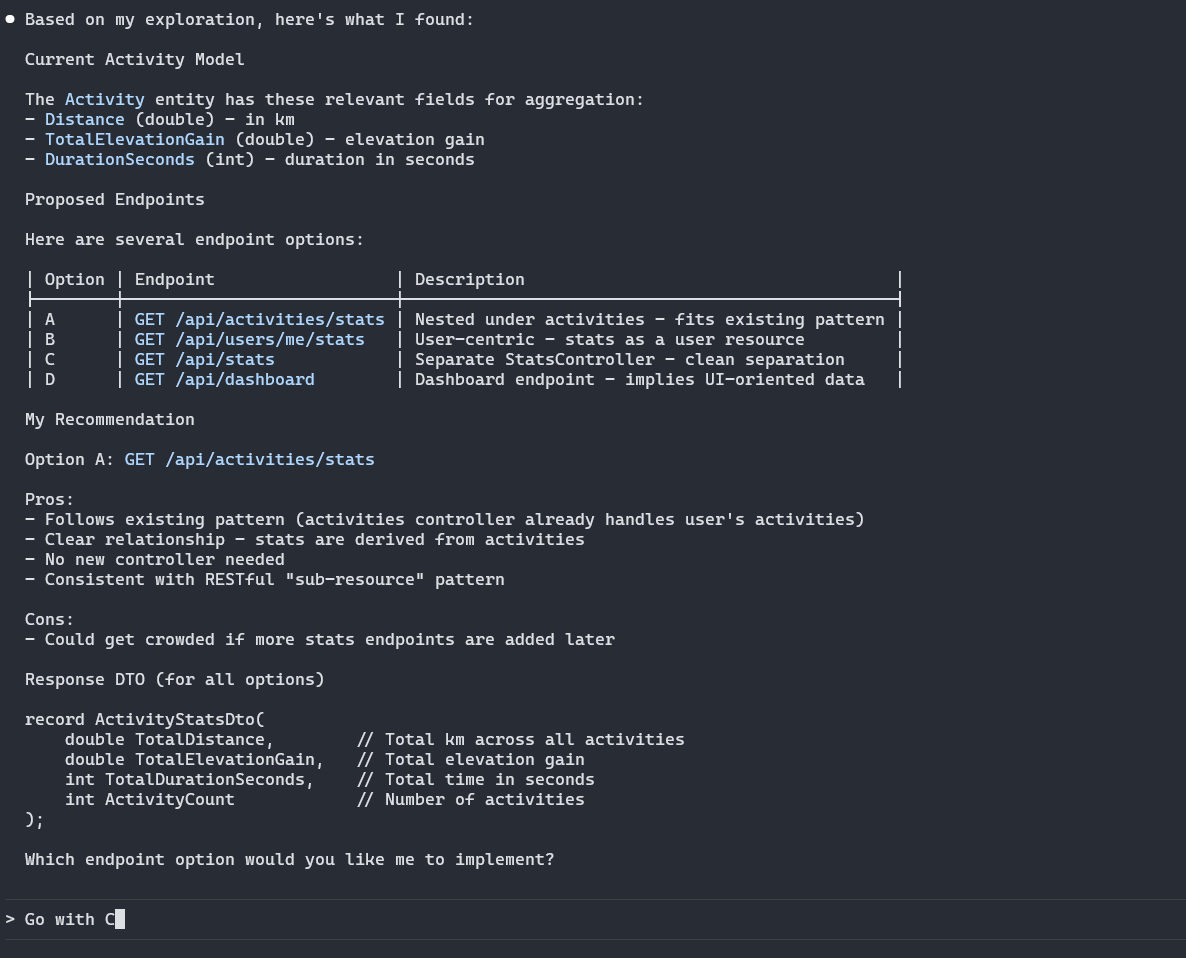
Once it starts implementing the change, notice how the todo list also adheres to the predefined workflow by including a task to update the .http file and test it:

By identifying gaps in your AI agent’s behaviour and implementing workflows to cover them, you’ll end up with an agent that can efficiently output code consistent with your team’s standards and processes.
AI agents can generate code that’s inconsistent with your existing conventions. For example, they might use a different naming convention for constant values or leave unnecessary comments scattered throughout the code.
While Claude Code usually scans existing files to see which conventions were used to implement previous features, it may not identify all coding standards and styles. This often leaves you, as the developer, with the task of cleaning up and aligning the generated code afterwards.
Including your project’s coding standards and styles in the CLAUDE.md helps Claude Code generate more consistent code. Also, if your agent creates Git branches and commits to them, you might include conventions used to name branches and write commit messages.
For example, take a look at the revised Code Styles section for the fitness app:
## Code Style

- General:
    - Prefer writing clear code and use inline comments sparingly
- C#:
    - 4-space indent
    - `PascalCase` for classes/methods
    - `_camelCase` for private fields
    - `camelCase` for local variables, parameters
    - Prefer primary constructors where possible
    - Use auto-properties, and `field` if necessary
    - Write XML comments on all classes, methods, properties and fields
    - Tests:
        - `<ClassName>Tests` for test class
        - `<MethodName>_<Conditions>_<AssertedOutcome>` for test methods (never `Async` suffix)
        - Arrange, Act, Assert pattern (comment each section in method)
- TypeScript/JavaScript/CSS:
    - 2-space indent
    - Document all methods, types and interfaces with JSDoc comments
    - Keep `*.test.ts` files in same directory as corresponding `*.ts` file
- Commits:
    - Use Conventional Commit format
    - **Commit Types:** `feat:`, `fix:`, `docs:`, `refactor:`, `test:`, `chore:`
    - **Scopes:** `web`, `api`, `docker`
The instructions above document the conventions the AI agent previously deviated from when implementing changes. Even these few clarifying points made a difference and reduced the refactoring required after the agent implemented a new feature, such as removing unnecessary comments and fixing naming.
If you notice stylistic differences between your project’s existing source code and code generated by Claude Code, mention the correct syntax in the CLAUDE.md file. This will help guide future agents in the right direction.
Claude Code excels at understanding general programming principles, but it might lack context for your business domain, especially in specialized domains. Project-specific jargon, obscure entity names, and acronyms can confuse the agent. Documenting domain-specific terms in the CLAUDE.md file helps AI agents navigate the codebase and edit the correct files, since they understand what these domain-specific terms mean and how they map to the code.
The added Terminology section below demonstrates some domain-specific jargon for the fitness app:
## Terminology

- **Wraps:** Another name for the annual video summary video for users.
- **Athlete:** Also referred to as Users in the system.
- **Track:** Refers to the collection of segments in a GPX file making up the runner's route.
- **Pace:** Refers to running speed. Always in `min/km` or `min/mile`
Including these terms in the CLAUDE.md file makes it easier to prompt the AI agent. You can now confidently use domain-specific terms, knowing the agent will understand their meaning and how they map to source files in the codebase.
If you find yourself defining a business term often when prompting Claude Code, add the term to the CLAUDE.md file. This way, you can refer to the term without needing to redefine it each time.
Knowing how project files are organized and which architectural patterns are used is important for the agent to implement features correctly.
When running the /init command in Claude Code, the agent scans the project files to identify which architectural patterns are used and documents them. If your codebase is less clear, Claude Code’s initial analysis might not detect any patterns, or it might identify the wrong ones. Always review the CLAUDE.md file and correct any assumptions or missing details related to project architecture. Also, if you notice agents keep storing files in the wrong directory when doing work, then clarify where they should be stored in this section. For example, if you see the agent keeps changing the project structure when writing tests, clarify where your unit test project resides and how it’s structured.
Below is the updated Architecture section for the fitness app’s CLAUDE.md file:
## Architecture

### Backend

The backend follows **Clean Architecture** with four layers:

```
api/src/
├── RunCover.API/            # Controllers, Program.cs (entry point), middleware
├── RunCover.Application/    # Service interfaces, DTOs, business logic
├── RunCover.Domain/         # Entities (User, Activity, UserPhoto, UserTemplatePhoto), value objects
└── RunCover.Infrastructure/ # EF Core DbContext, repositories, external services (Gemini), migrations
```

Tests are split into similar layers:

```
api/tests/
├── RunCover.Application.Tests/     # Unit tests covering classes in the RunCover.Application project
├── RunCover.Domain.Tests/          # Unit tests covering business logic in the RunCover.Domain.Tests project
└── RunCover.Infrastructure.Tests/  # Tests external service implementations
```

### Frontend
```
web/src/
├── routes/          # File-based routing (TanStack Router) - __root.tsx, index.tsx, dashboard.tsx
├── components/ui/   # Radix UI wrapper components
├── lib/api.ts       # API client utilities
└── hooks/           # Custom React hooks
```

Test files are stored alongside implementation files, and are differentiated using the `*.test.ts` suffix on the file name.

The file `routeTree.gen.ts` is auto-generated by TanStack Router - do not edit manually.
The section details how the API project and its tests are structured, so Claude Code knows where each file belongs. It also shows the high-level directory structure of the React project. This helps the agent navigate the monorepo more efficiently.
The Model Context Protocol (MCP) lets AI agents call third-party tools and retrieve information from databases and documentation. Several MCP tools are available to developers. Some run on your local machine, like Playwright MCP, which lets the agent control a web browser instance. Others are remote and accessible via HTTP, such as the GitHub MCP, which allows your agent perform actions on GitHub.
You can configure MCP servers for your Claude Code agent using a terminal command or JSON files. Once the MCP Server is configured, you can instruct the agent on how and when to use it in the CLAUDE.md file.
For example, the fitness application uses Shadcn for the user interface and uses components from a third-party registry. The agent should be aware of the configured registries so it can also search there for components. Fortunately, Shadcn has a local MCP server that lets an agent browse and install components from predefined registries.
After setting up the MCP server in Claude Code, you can remind agents to use the MCP tool in the CLAUDE.md file:
## Model Context Protocol (MCP) Servers

### Shadcn UI MCP

When working with Shadcn UI components, always use the Shadcn MCP server to browse available component repositories, search for specific components and install components. Never run terminal commands directly.
From now on, Claude Code will use the MCP server instead of the default Shadcn CLI, ensuring it searches for components in the correct repositories
When making changes to your project’s CLAUDE.md file, keep the following best practices in mind.
Claude Code agents have a context window, and the CLAUDE.md file gets added to the agent’s context. Any unnecessary instructions and wordy sentences will consume more of that context. This leaves less room for performing tasks. As a result, your conversations are shorter, and past interactions need to be compacted more often.
Whenever you add new instructions to your CLAUDE.md file, check whether there’s a way to say the same thing in fewer words. You’ll often find you can summarize your initial instruction significantly without losing details. Also, ensure you never duplicate instructions, as these duplicate lines add little value and use unnecessary context.
Another approach that works well is breaking up your CLAUDE.md file into multiple files. For example, instead of summarizing your C# coding standards in the CLAUDE.md file, you can replace it with something like this:
## Code Style

Read `docs/csharp-standards.md` when modifying or creating any C# files.
Read `docs/web-standards.md` when modifying a JS, TS, or CSS files.
Claude agents now wait until they actually need a file before adding it to their context. This minimizes the amount of unnecessary instructions in your context window.
You cannot craft the perfect CLAUDE.md file immediately. Instead, treat it as a living document that you modify and add to over time as you encounter particular behaviors with Claude Code. For example, if you notice that Claude runs the entire test suite when making a change to a single file, add a note in CLAUDE.md on how to run individual tests. Or if your agent leaves too many comments throughout the code, mention it in the file.
As you tweak the file over time, your agent will become more productive and complete tasks more efficiently.
The CLAUDE.md file contains instructions for how agents should implement changes in the codebase. Adding it to source control makes sense for a couple of reasons.
Adding the file ensures that all agents share the same behavior and adhere to the team’s standards and processes. You can also follow the same review process you use for code when making changes to the CLAUDE.md file. Having the file checked in also lets you easily hand off the repository to an asynchronous Claude Code agent on the web, and it will instantly know how to make changes by reading the checked-in CLAUDE.md file.
Be careful when including the file though. Make sure you don’t accidentally include any secrets, connection strings, or other values you don’t want checked into source control in your CLAUDE.md file.
Claude Code is powerful, and the agents it spins up are capable with minimal setup. The CLAUDE.md file helps you guide agents effectively, so they make fewer mistakes and complete tasks faster using fewer tokens.
By specifying which terminal commands to use, which workflows and coding standards to follow, and which MCP tools to use, agents make fewer mistakes while developing and testing code changes. They can also navigate the codebase more effectively by understanding the high-level architecture and any domain-specific jargon. Check the file into source control so the whole team can iterate on it over time, but always keep changes concise to minimize context usage.
If you’re interested in how AI agents can boost your productivity, check out the Dometrain courses below.
Get started with integrating AI into your .NET applications effectively using the latest LLM best practices.

Learn how to use AI Agents that can reason, use tools and take action to build products.


Deep dive into Artificial Intelligence to improve developer productivity


© 2026 Dometrain. All rights reserved.

Generate unlimited coding challenges with AI. Practice C#, Python, TypeScript, and JavaScript in your browser with instant test feedback.
Learn more about AI Code Challenge Generator
Learn how to get started with the Model Context Protocol (MCP) and integrate it into your applications.
Learn more about Getting Started: Model Context Protocol (MCP)
Learn TypeScript through hands-on coding exercises. Practice what you learn with interactive challenges designed for every level.
Learn more about Hands-On: Learn TypeScript
Learn JavaScript through hands-on coding exercises. Practice what you learn with interactive challenges designed for every level.
Learn more about Hands-On: Learn JavaScript
Master data structures and algorithms through hands-on coding exercises in C#. Free to enroll for 7 days!
Learn more about Hands-On: Data Structures & Algorithms in C#
Turn your videos into blogs and newsletters with AI. Check out our new product at blogsmith.ai.
Learn more about Blogsmith.ai
See how you stack up against other learners. Track your progress, climb the ranks, and compete with the Dometrain community.
Learn more about Leaderboard
Learn PostgreSQL through hands-on coding exercises. Practice what you learn with interactive challenges designed for every level.
Learn more about Hands-On: Learn PostgreSQL
Learn C# through hands-on coding exercises. Practice what you learn with interactive challenges designed for everyone, from beginners to experts.
Learn more about Free Hands-On: C# for Beginners
Get started with integrating AI into your .NET applications effectively using the latest LLM best practices.
Learn more about Getting Started: AI for .NET Developers
Learn how to build and deploy .NET applications on AWS using CDK, Lambda, DynamoDB, S3, and more.
Learn more about Getting Started: Building .NET Applications on AWS
This guide covers every new C# 14 feature, explains its benefits, and provides practical code examples to help you navigate how you can use them.
Learn more about What's new in C# 14
Build a Retrieval-Augmented Generation (RAG) chatbot that can answer questions using your data.
Learn more about Let's Build It: AI Chatbot with RAG in .NET Using Your Data
Enable enterprise-grade real-time communication for your web apps with SignalR.
Learn more about From Zero to Hero: SignalR in .NET
Master solution architecture and turn business needs into scalable, maintainable systems.
Learn more about Deep Dive: Solution Architecture
A step-by-step process to migrate ASP.NET Web APIs from .NET Framework to ASP.NET Core.
Learn more about Migrating: ASP.NET Web APIs to ASP.NET Core
Let's make the hardest thing in programming easy for .NET software engineers.
Learn more about Getting Started: Caching in .NET
Learn how to test any codebase in .NET with the latest version of xUnit, the industry-standard testing library.
Learn more about From Zero to Hero: Testing with xUnit in C#
This walkthrough is your hands-on entry point to create a basic C# console application that talks to ChatGPT using the OpenAI API.
Learn more about Create a ChatGPT Console AI Chatbot in C#