Getting Started: C#
Get started with C# programming in this comprehensive course, perfect for beginners or those transitioning from other languages. Learn key concepts like variables, loops, OOP, and debugging in C#.


© 2026 Dometrain. All rights reserved.
If you’re brand new to .NET, the first step is getting your computer ready.
This guide walks you through installing .NET SDK and Visual Studio Code (VS Code) on Windows, macOS, and Linux. By the end, you’ll run your first Hello World program — the classic test that proves your setup works.
👉 This page is meant to be a reference. I’ll link back to it in other tutorials, so you always have one place to check the setup steps.
dotnet --version and dotnet --info.Before you begin, make sure your system meets these requirements:
The .NET SDK gives you the compiler, runtime, and tools. You only need to install it once.
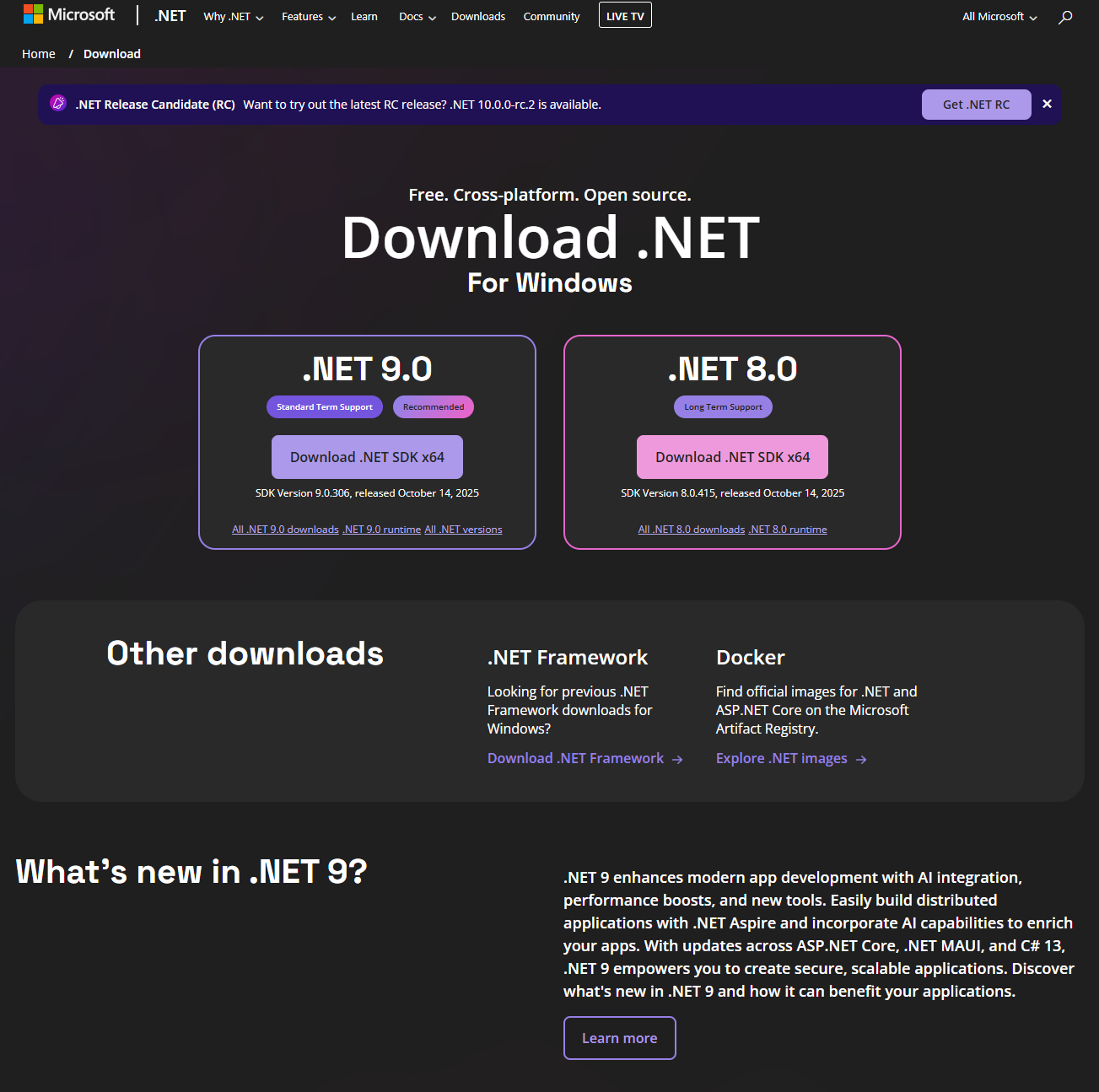 The .NET download page showing SDK options for different platforms
In this guide we will select .NET 9.0 (the most recent release). However, if you prefer the LTS version you can select .NET 8.
.NET 9 (Current Release):
.NET 8 (LTS - Long Term Support):
.exe) for the .NET 9.0 SDK.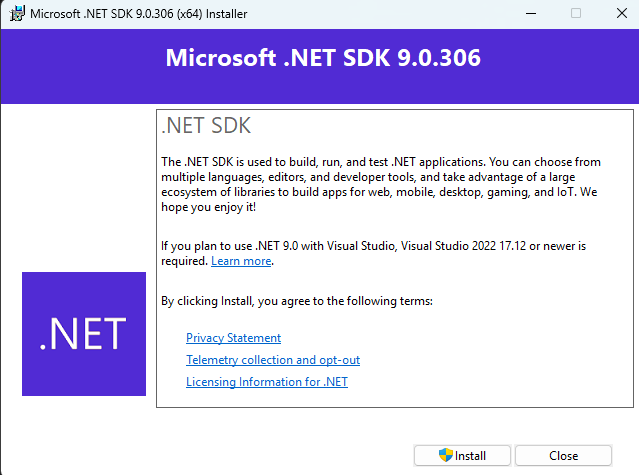 The windows installer for .NET 9
dotnet --version
You should see a version number like 9.0.205.
dotnet --info
This shows detailed information about your SDK installation, runtime versions, and operating system.
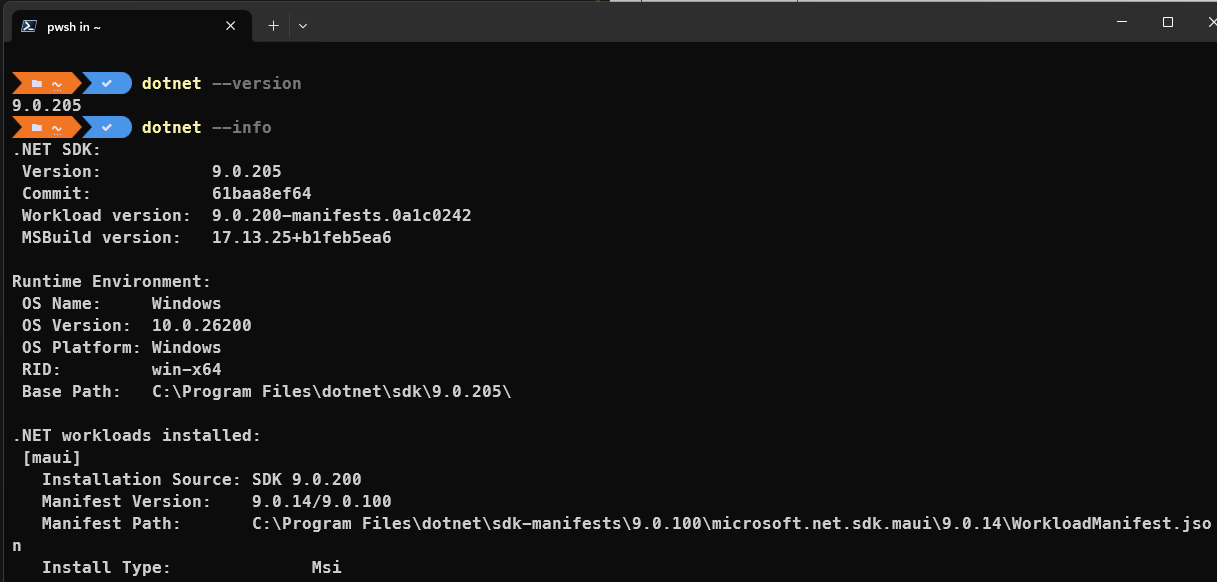 Terminal output showing the installed .NET SDK version
Download the .pkg installer for macOS (Intel or Apple Silicon) for .NET 9.0 SDK.
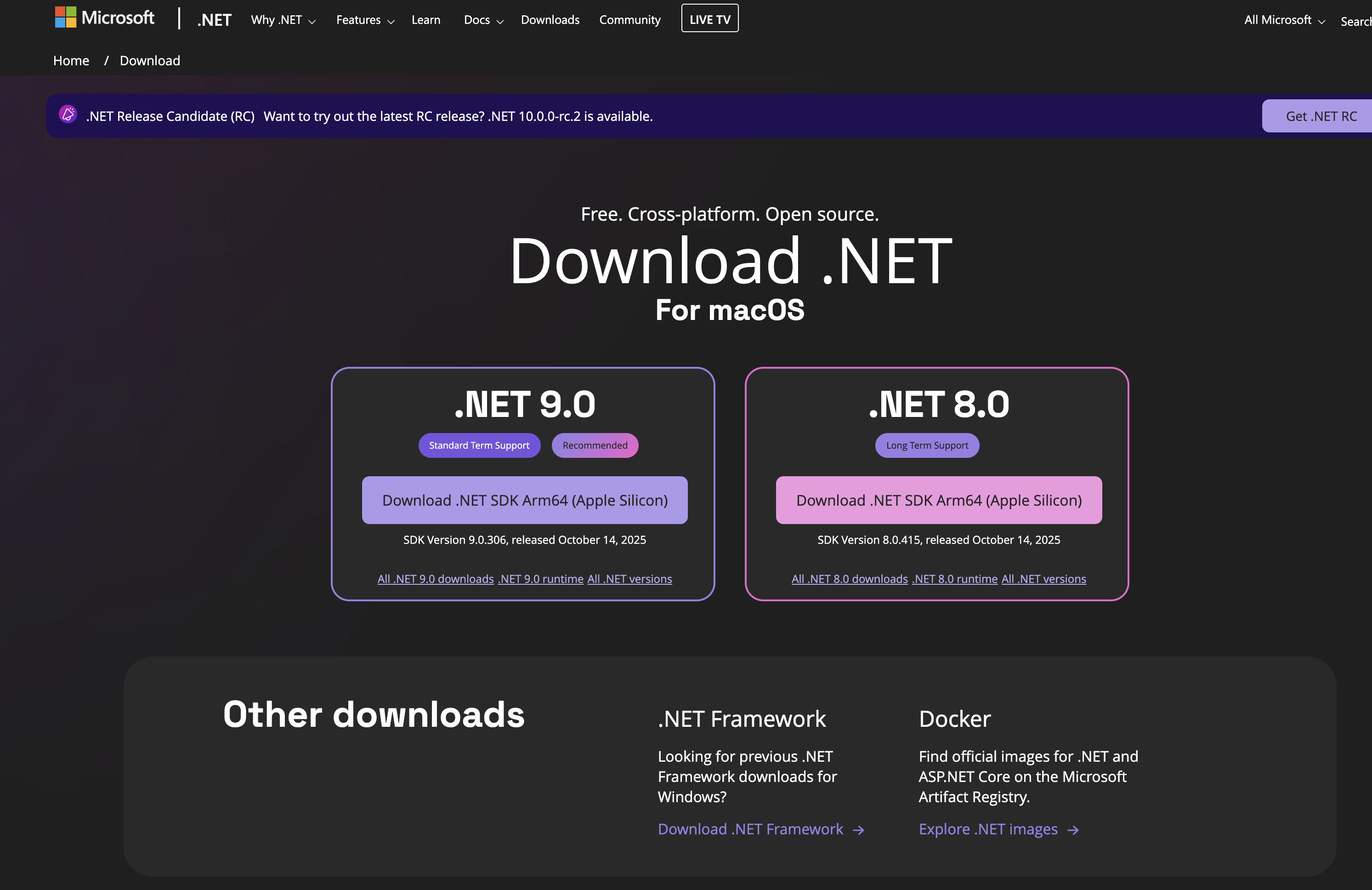 Selecting the correct .NET 9 installer for your Mac (Intel or Apple Silicon)
Run the installer.
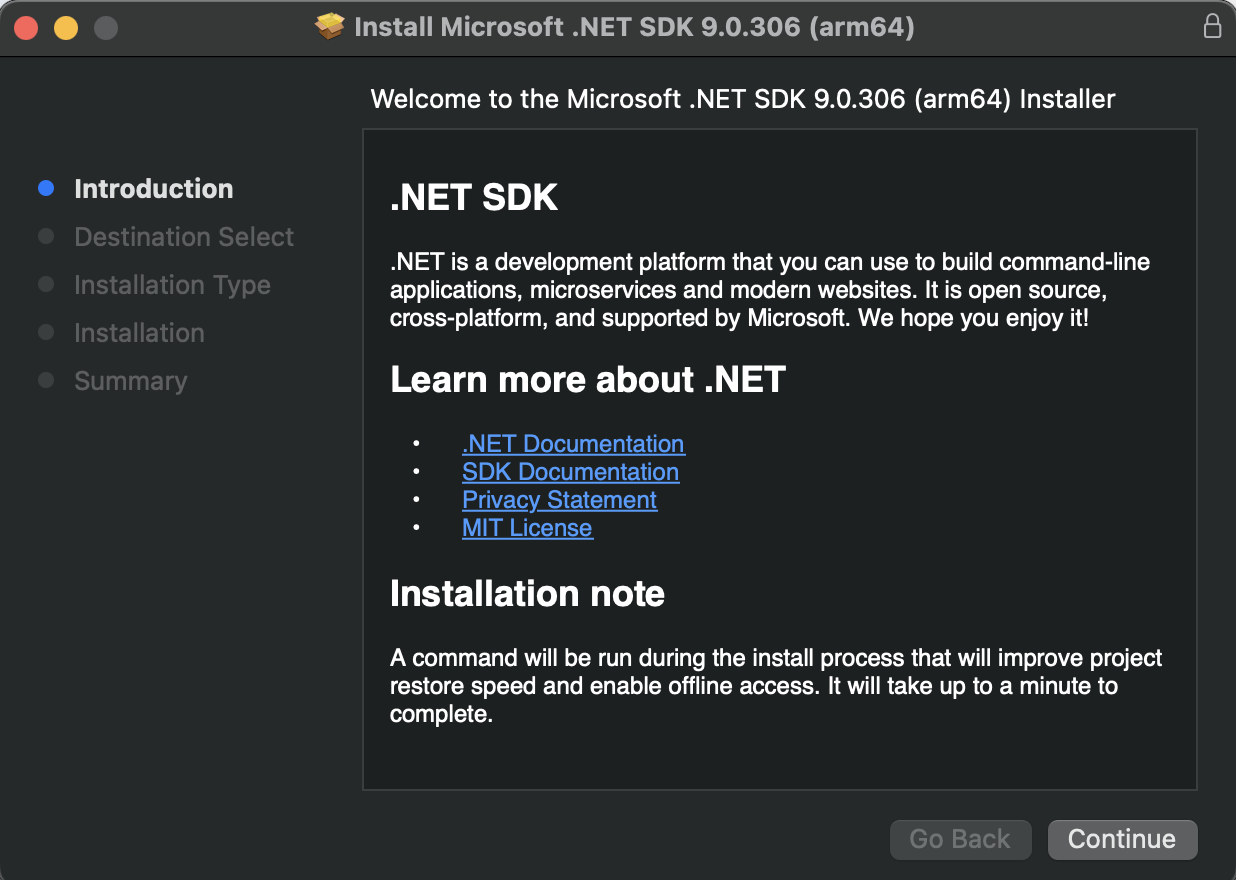 The .NET SDK installer running on macOS
Close and reopen your Terminal.
Verify:
dotnet --version
dotnet --info
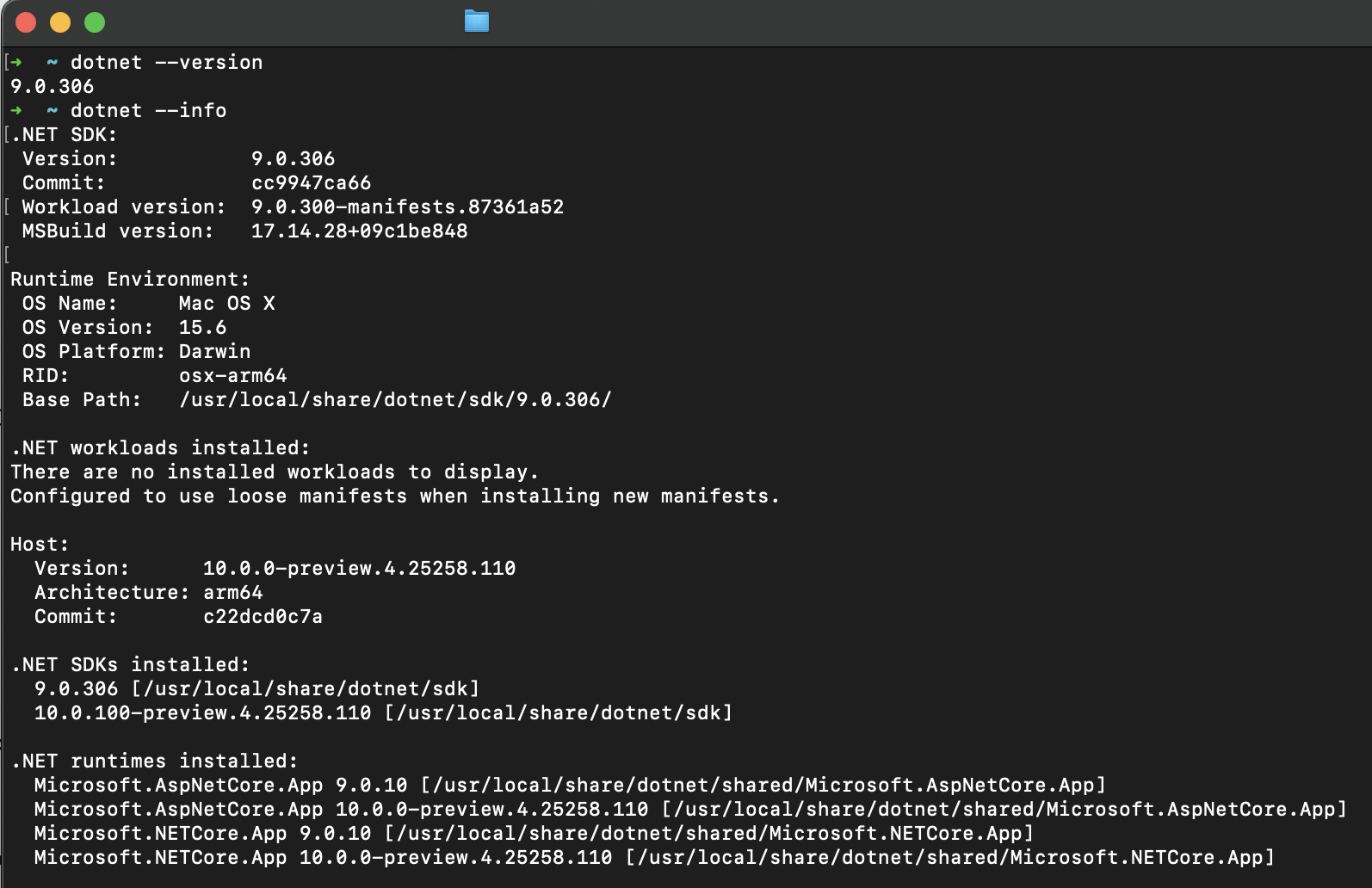 Terminal on macOS showing .NET 9 installation
Note for Apple Silicon (M1/M2/M3): Some older NuGet packages may require Rosetta 2. Install if needed: softwareupdate --install-rosetta
Linux comes in many distributions (Ubuntu, Fedora, Arch, openSUSE, RHEL, and more), each with its own package manager and installation method. This guide shows installation on Ubuntu/Debian-based systems as they’re the most common for beginners.
For other Linux distributions (Fedora, CentOS, RHEL, Alpine, SLES, openSUSE, etc.), please refer to the official Microsoft .NET installation guide for Linux, which provides specific instructions for your distribution.
sudo apt-get update
sudo apt-get install -y dotnet-sdk-9.0
dotnet --version
dotnet --info
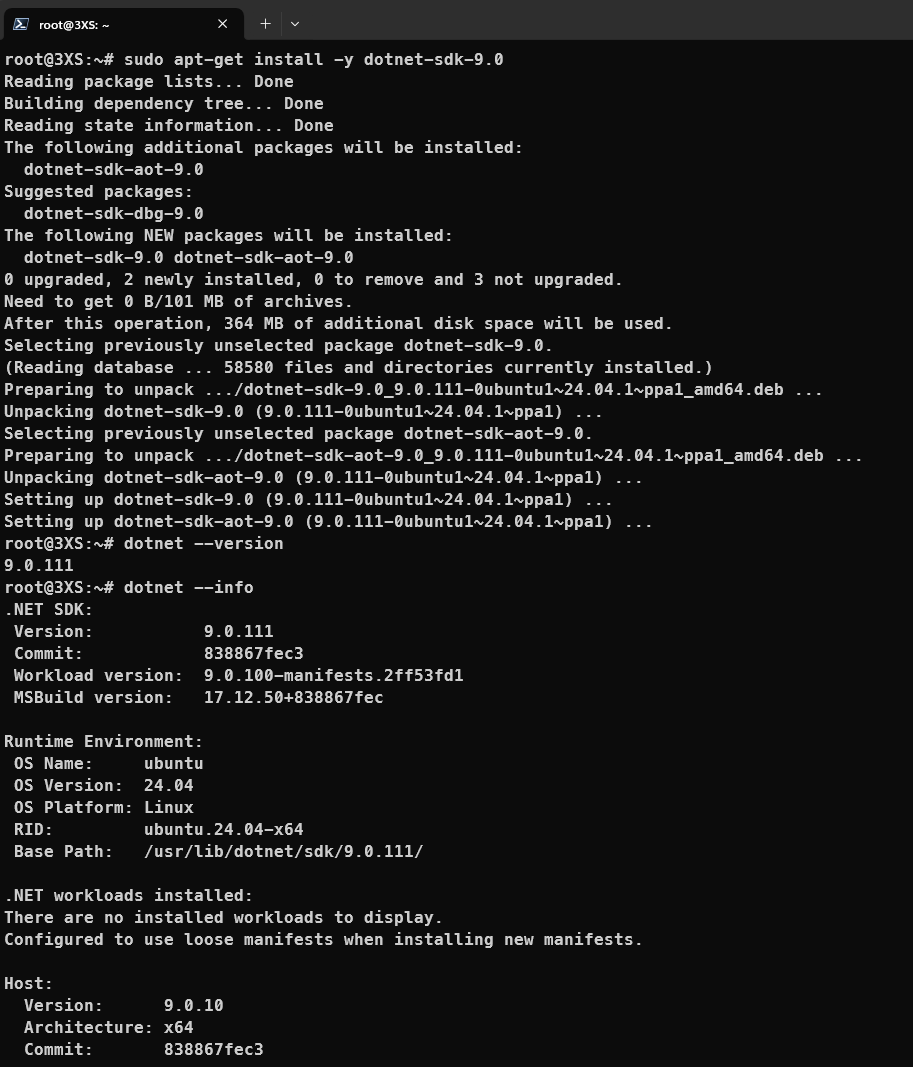 Installing .NET SDK on Ubuntu/Debian using apt-get
VS Code is a lightweight, cross-platform editor — perfect for .NET beginners.
.exe, macOS .dmg, Linux .deb/.rpm).Inside VS Code:
Ctrl+Shift+X on Windows/Linux, Cmd+Shift+X on macOS).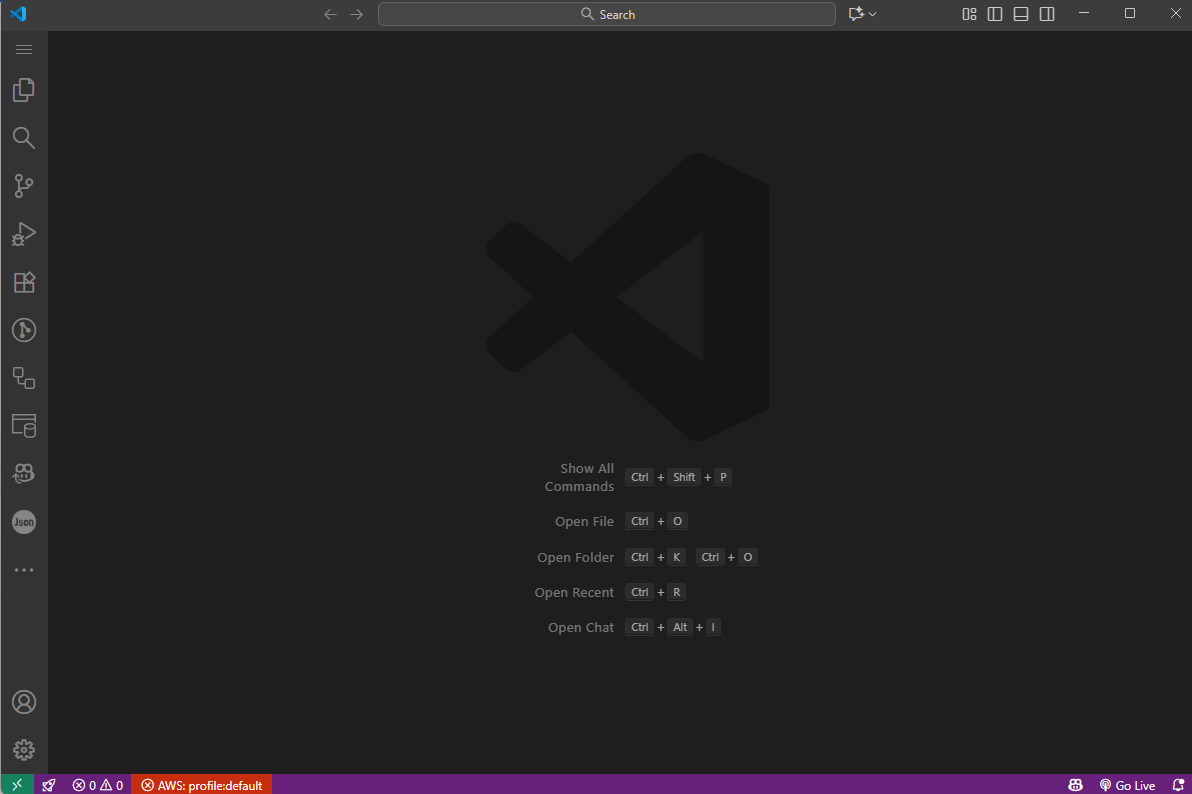 VS Code
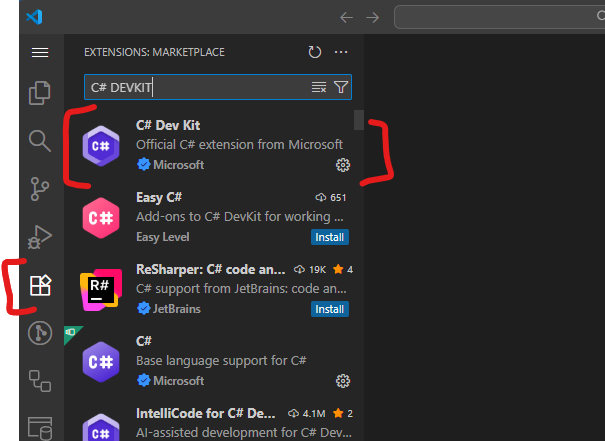 C# Dev Kit extension in VS Code Extensions marketplace
Note: The C# Dev Kit extension will also install the C# extension automatically.
While this guide uses VS Code, other options include:
For beginners, VS Code is recommended due to its simplicity and cross-platform consistency.
Pick a folder where you want to work (e.g., Documents/Projects or ~/projects).
Run these commands in your terminal or VS Code’s built-in terminal (Ctrl+`` or Cmd+``):
dotnet new console -o HelloWorld
cd HelloWorld
dotnet run
Expected output:
The template "Console App" was created successfully.

Processing post-creation actions...
Restoring C:\...\HelloWorld\HelloWorld.csproj:
  Determining projects to restore...
  Restored C:\...\HelloWorld\HelloWorld.csproj (in 156 ms).
Restore succeeded.

Hello, World!
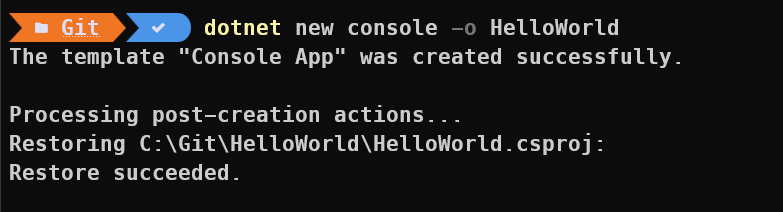
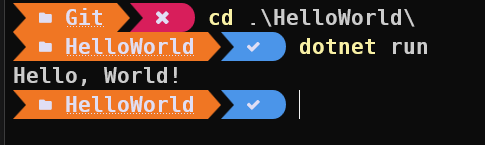 Creating and running your first .NET console application
That’s it — your machine is officially ready for .NET development! 🎉
What just happened:
dotnet new console -o HelloWorld created a new console applicationcd HelloWorld navigated into the project folderdotnet run compiled and executed the programIn VS Code, open the HelloWorld folder:
HelloWorld directory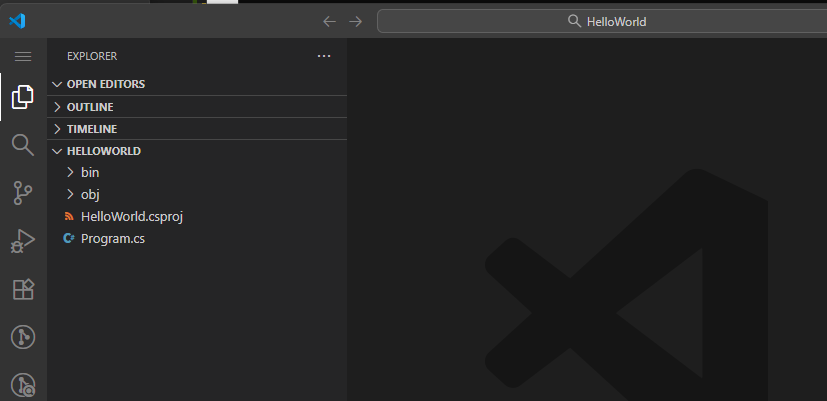 Program.cs file open in VS Code
Program.cs — you’ll see the single line of code: Console.WriteLine("Hello, World!");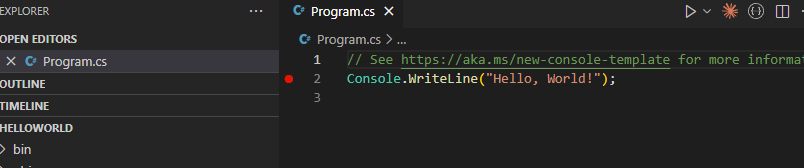 Setting a breakpoint in VS Code by clicking left of the line number
.vscode/launch.json automaticallyWhat you should see:
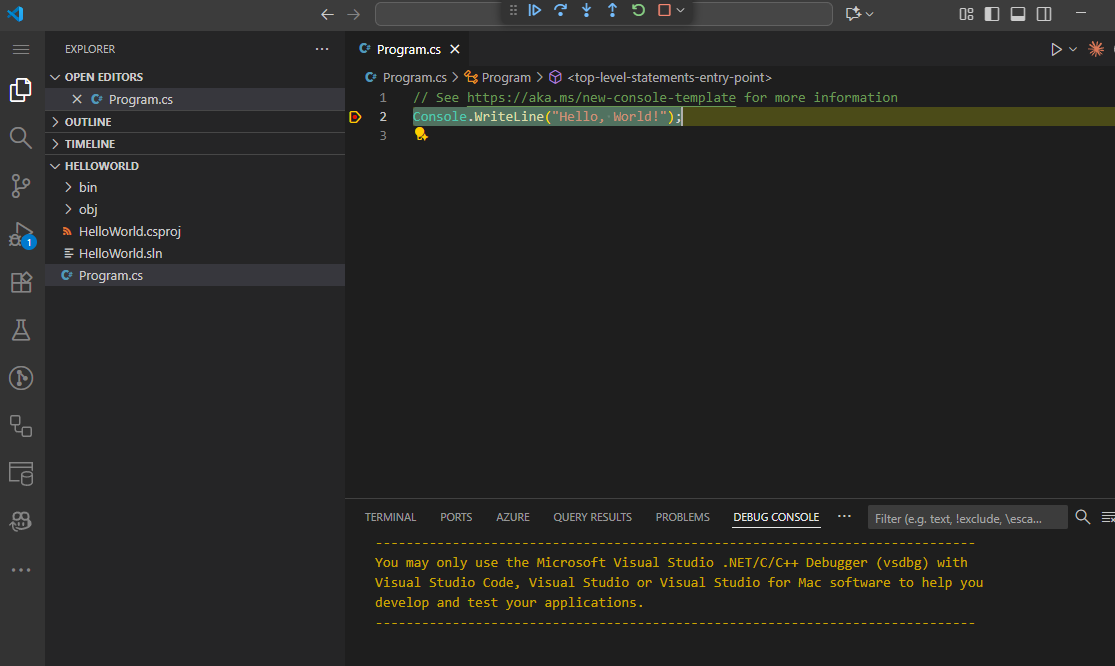 VS Code debugging interface showing breakpoint, variables panel, and debug toolbar
You’ve just used several dotnet commands. Here are the most common ones you’ll use:
| Command | Purpose |
|---|---|
dotnet --version |
Check installed SDK version |
dotnet --info |
Show detailed SDK and runtime information |
dotnet new list |
See available project templates |
dotnet new console -o ProjectName |
Create a new console app |
dotnet run |
Build and run your app |
dotnet build |
Compile without running |
dotnet add package <name> |
Install NuGet packages |
dotnet restore |
Restore project dependencies |
dotnet test |
Run unit tests |
dotnet clean |
Remove build artifacts |
You’ll use these throughout your .NET journey.
Windows:
$env:PATH -split ';' | Select-String dotnetmacOS/Linux:
source ~/.bashrc (bash) or source ~/.zshrc (zsh)echo $PATH | grep dotnet/usr/local/share/dotnet/dotnet --versionCtrl+Shift+P (or Cmd+Shift+P) → type “Reload Window”dotnet --version works in VS Code’s integrated terminalIf you see permission denied errors:
sudo chown -R $USER:$USER ~/.dotnet
dotnet run is slowThe very first time you run a .NET app, it needs to:
This is normal and only happens once per project.
.csproj file)Ctrl+Shift+U) for error messagesBy now you’ve:
dotnet --version and dotnet --infodotnet CLI commandsYou’re ready for any .NET tutorial — whether it’s building web APIs, desktop apps, or AI integrations.
Get started with C# programming in this comprehensive course, perfect for beginners or those transitioning from other languages. Learn key concepts like variables, loops, OOP, and debugging in C#.

Dive deeper into C# with this advanced course, covering topics like OOP, multithreading, async programming, LINQ, and more. Perfect for those with C# basics looking to expand their expertise.